Navigate the User Interface
When you launch Axminster, the app shows a document picker from which you can select an existing XMI file to load. Choose New Document to create a new model. Axminster opens a viewer window, showing an empty Use Case diagram.
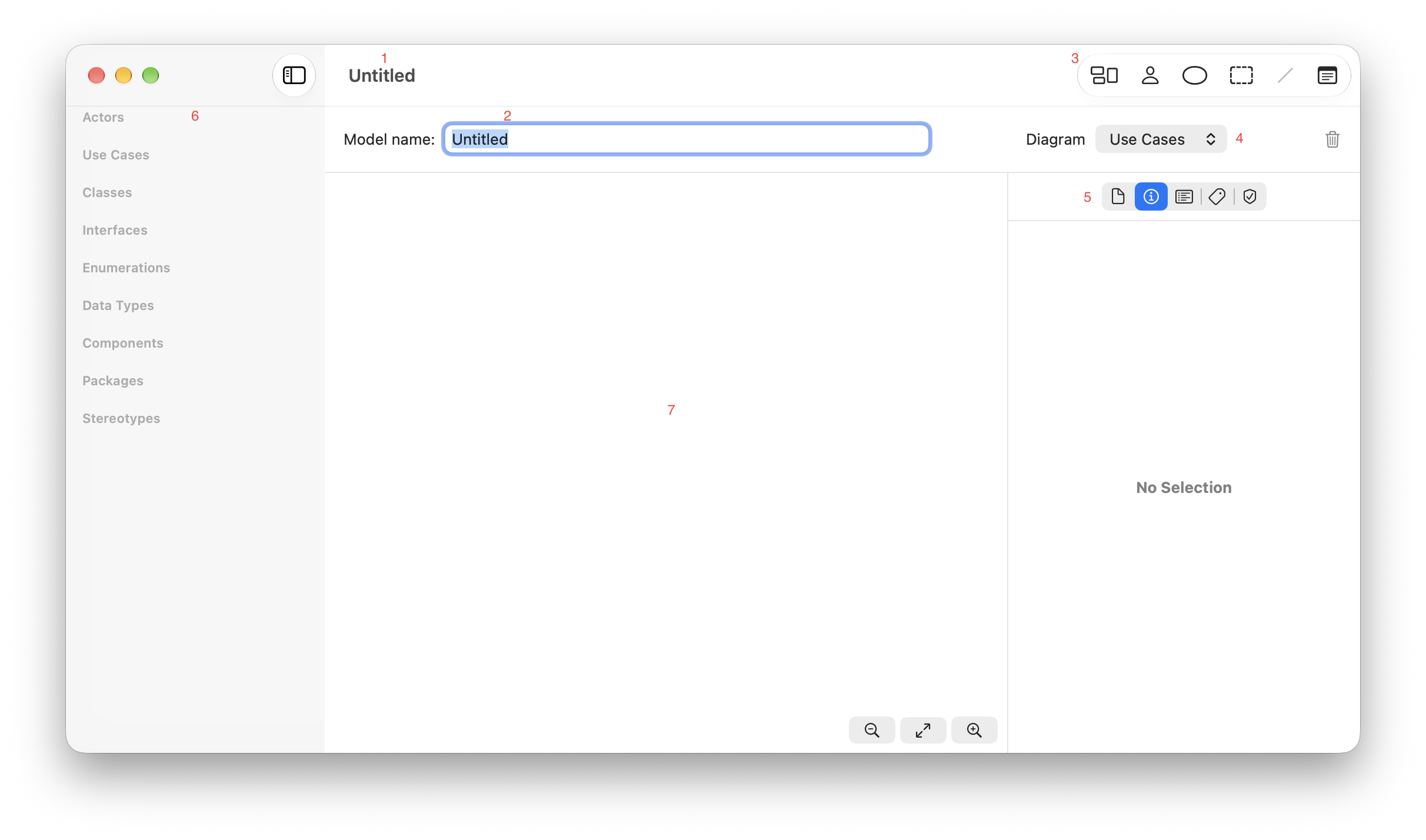
The window contains the following items:
The name of the document you’re working on.
The name of the software model you’re designing.
Toolbar. Use these controls to create a new diagram, or to add elements to the diagram currently shown in the canvas (7). For more information, see Create a Diagram and Add Elements to a Model.
Diagram chooser. Use this control to change the diagram currently shown in the canvas (7). Click the trash can icon to the right to remove the current diagram from the model.
Inspector. This shows information about the current diagram, or the currently selected model element. Use the icons to choose between inspecting the diagram, the model element’s identity, the model element’s contents, the stereotypes that apply to the model element, and the OCL constraints that apply to the model element.
Sidebar. This shows a complete list of the elements and associations in the model. Elements that are part of the model but not currently visualized on any diagram are shown in red. Use the diagram inspector (5) to add elements to diagrams.
The diagram canvas. This shows the elements in the current diagram. Axminster automatically organizes elements on the canvas, so you don’t need to drag or move elements as you create them. Select elements in the canvas to view and edit details in the inspector (5). Use the controls at the bottom of the canvas to zoom in to, or out of, the diagram view.